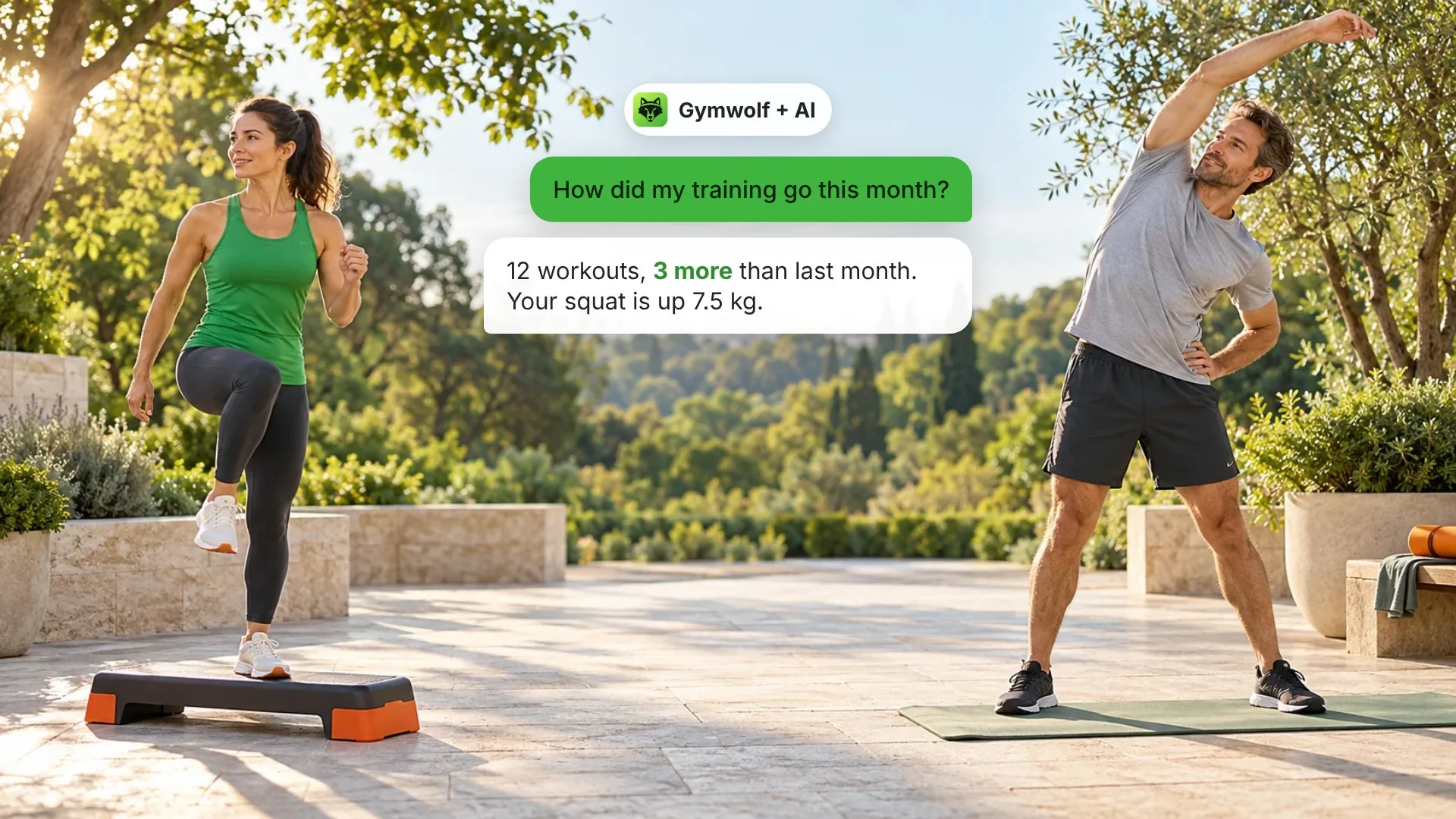

Your training log and food diary already know a lot about you: what you lifted last week, how your runs are going, what you ate yesterday. Now you can talk to that data. The Gymwolf connector links your Gymwolf training diary and FunTastyQ Fit food diary to an AI assistant you choose, such as Claude or ChatGPT.
Ask "How did my training go this month?" and get an answer from your real workouts, not a guess. Hand the assistant a PDF programme from your coach and get it back as Gymwolf workout plans. Tell it what you had for lunch and it adds the meal to your diary.
Connector address: https://auth.fitq.me/mcp
What you can ask
Training review: "Compare my last four weeks with the four before that. Which lifts went up?"
Plans from any format: "Turn this spreadsheet (or PDF, or photo of a whiteboard) into Gymwolf workout plans and put them on my calendar for Mondays and Thursdays."
Logging by chat: "Log today's workout: squat 3×5 at 100 kg, bench 3×5 at 70 kg."
Running and walking records: "What are my best 5 km times this year?"
Nutrition check: "How close was I to my protein target this week?" or "Add 150 g of Greek yoghurt and a banana to breakfast."
Recipes: "Save this recipe as a private recipe so I can log it later."
Before you start
You need a Gymwolf (FitQ) account with a FitQ Basic or higher plan. The food diary features use your FunTastyQ Fit diary on the same account.
Connect in Claude
Open Claude and go to Settings → Connectors.
Find Gymwolf in the directory, or choose Add custom connector and paste
https://auth.fitq.me/mcp.Sign in with your Gymwolf account.
On our consent screen, choose what Claude may do (see below) and select Allow.
Connect in ChatGPT and other assistants
The connector uses the open Model Context Protocol (MCP), so it also works with ChatGPT, Gemini and other assistants that support MCP connectors with sign-in. Add a new connector or app in the assistant's settings, paste https://auth.fitq.me/mcp, sign in with your Gymwolf account and approve the permissions. Menu names differ between assistants and change over time.
You choose what to share
The consent screen has a separate switch for each permission:
View workouts and plans: history, templates, plans, records and the exercise catalogue.
Add workouts and plans: log workouts, save plans and custom exercises, plan calendar days.
View food diary and recipes: meals, daily targets, the food catalogue and your recipes.
Add meals and recipes: add meals to your diary and save private recipes.
Switch off anything you don't want. "Add" needs the matching "View" permission.
What the connector never does
It never changes or deletes your existing workouts, plans or meals. Write permissions only add new entries. The only exception: planned calendar days that were added through an AI assistant and that you haven't done yet can be removed again.
It never sees your password, payment data or genetic data.
The connector tells the assistant to show you what it is about to save and to wait for your confirmation before adding anything.
Disconnect at any time
Open Gymwolf settings → AI apps or go to auth.fitq.me/mcp/connections. You'll see every connected assistant, what it may do and when it was last used. Disconnect stops access immediately. Changing your password also disconnects all assistants. Workouts and meals the assistant added stay in your diary like your own entries.
Privacy
Data you let the assistant read is sent to the provider of that assistant (for example Anthropic or OpenAI), which processes it under its own terms and privacy policy. We log only technical details of each request, such as the tool name and outcome, not what you asked or what was returned. Read the details in section 6.7 of our Privacy Policy.
Questions?
Write to cs@fitq.me. We read every message.
